
Getting started with Google's new social networking service? We have a few quick tips to get you oriented.
Google Plus (aka Google+), Google's new social network, might offer the right mix of sharing and privacy to woo you away from your Facebook account. If you don't know how to use it, though, it's just a confusing mess of circles and contacts. So we've assembled a few tips to help you get started. (If you aren't on Google Plus yet, try our Google Plus invite trick.)
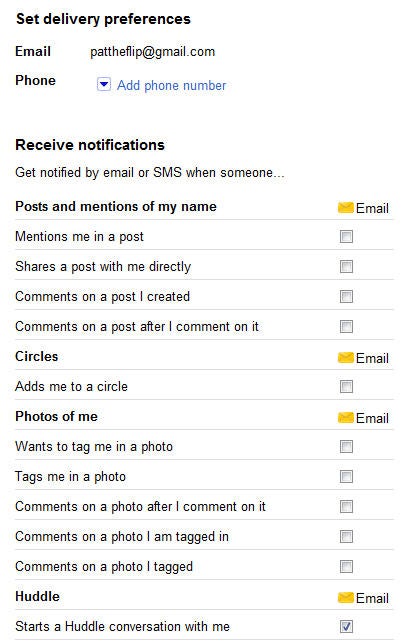 Google Plus email notifications.
Tweak your email notification options. By default,
Google Plus will spam your Gmail account with notifications for
practically anything involving your new account. You can go to the Google Account options to uncheck all of the ones you don't want to get, thereby reducing your Gmail traffic considerably.
Google Plus email notifications.
Tweak your email notification options. By default,
Google Plus will spam your Gmail account with notifications for
practically anything involving your new account. You can go to the Google Account options to uncheck all of the ones you don't want to get, thereby reducing your Gmail traffic considerably. Google Plus profile sharing settings.
Change your profile's field-sharing settings. Your
Google Account has certain basic fields that it can share with
anyone--but you don't have to go along with maximum sharing. Open your Google Account Profile and privacy settings, click Edit visibility on profile, and then click the individual profile fields and determine how public you want to make them.
Google Plus profile sharing settings.
Change your profile's field-sharing settings. Your
Google Account has certain basic fields that it can share with
anyone--but you don't have to go along with maximum sharing. Open your Google Account Profile and privacy settings, click Edit visibility on profile, and then click the individual profile fields and determine how public you want to make them. Disable resharing in Google Plus.
Disable resharing. Google Plus may make it easy for
you to segregate who you share your information with, but your
connections have no such limitations, meaning that something you share
with a select few can still spread like wildfire across your networks.
Nevertheless, you can disable resharing of a certain post after posting
it: Just click the arrow in the upper-right-hand corner of the post and
then click Disable resharing.
Disable resharing in Google Plus.
Disable resharing. Google Plus may make it easy for
you to segregate who you share your information with, but your
connections have no such limitations, meaning that something you share
with a select few can still spread like wildfire across your networks.
Nevertheless, you can disable resharing of a certain post after posting
it: Just click the arrow in the upper-right-hand corner of the post and
then click Disable resharing.Check your Incoming feed. Unlike Facebook, Google Plus lets people share things with you even if you're not following them. Consequently you'll want to check your Incoming feed now and then to see whether you're missing out on anything interesting from someone you don't follow. Think of it as a spam folder that occasionally contains something interesting.
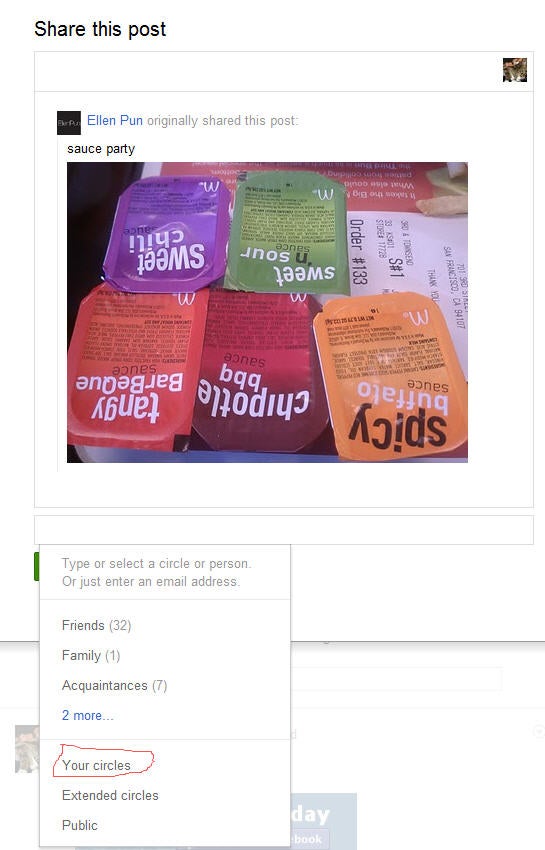 The Your Circles option in Google Plus saves you a few clicks.
Use the Your Circles option while sharing. Google
Plus's Circles system is great for letting you use your Plus account to
set barriers between the various groups of people you want to share
things with. If most of what you share on Google Plus isn't especially
privacy-sensitive, however, use the Your Circles sharing option to
automatically share items with all of your circles and avoid the trouble
of clicking each individual circle.
The Your Circles option in Google Plus saves you a few clicks.
Use the Your Circles option while sharing. Google
Plus's Circles system is great for letting you use your Plus account to
set barriers between the various groups of people you want to share
things with. If most of what you share on Google Plus isn't especially
privacy-sensitive, however, use the Your Circles sharing option to
automatically share items with all of your circles and avoid the trouble
of clicking each individual circle.Start some Sparks. In addition to following people, you can search for interesting stuff to share about particular topics in the Sparks section on the side menu of the main page. Click Sparks, and search for things that you're interested in or browse through the featured topics; if you want to pin a search on your sidebar for easy future access, click the Add Interest button under the search field.
Click through profile pictures. You can easily cycle through other people's profile pics by clicking on them.
 Text formatting in Google Plus.
Add some basic formatting. As with Google Talk and
Google Buzz, you can add basic text styles to some of your Google Plus
text. Paired asterisks (*text*) make bold text, paired underscores
(_text_) make italics, and paired dashes (-text-) make strikethroughs.
Text formatting in Google Plus.
Add some basic formatting. As with Google Talk and
Google Buzz, you can add basic text styles to some of your Google Plus
text. Paired asterisks (*text*) make bold text, paired underscores
(_text_) make italics, and paired dashes (-text-) make strikethroughs.


Post a Comment